Plus for FluentCommunity v2 User Manual
The completely new Version 2.0.0 manual for installation, configuration, enhancements, add-ons, Theme Studio, content workflows, Discord integration, archiving, analytics, licensing, and system tools.
Version 2.0.0Getting Started
Installation, upgrading from v1.x, requirements, and the v2 welcome experience.
View setup →Theme Studio
Preview controls, device viewports, Menu Styling, Topic Styling, Badge Styling, and live updates.
View Theme Studio →Content & Integrations
Feeds, WordPress posts, Discord imports, FluentHub, outbound Discord, and archive workflows.
View content tools →Getting Started
Install or upgrade Plus, understand the v2 onboarding flow, and get familiar with the new navigation model.
Requirements
| Requirement | Notes |
|---|---|
| WordPress | Modern supported WordPress installation. |
| PHP | PHP 8.1 or newer is recommended for the v2 branch. |
| FluentCommunity | Required. Plus extends FluentCommunity and does not operate as a standalone community platform. |
| FluentCommunity Pro | Only required for features that depend on Pro functionality, such as document-library download tracking. |
| License | Required for premium add-ons. Core enhancements remain available without a premium add-on license where applicable. |
Installation & Upgrading to v2
- Upload the Plus v2 ZIP through Plugins → Add New Plugin → Upload Plugin, install it through your normal WordPress plugin workflow, or update an existing Plus installation.
- Activate Plus for FluentCommunity if this is a fresh installation.
- If upgrading from v1.x, allow v2 to migrate existing compatible settings. Do not remove your old configuration before confirming the migration.
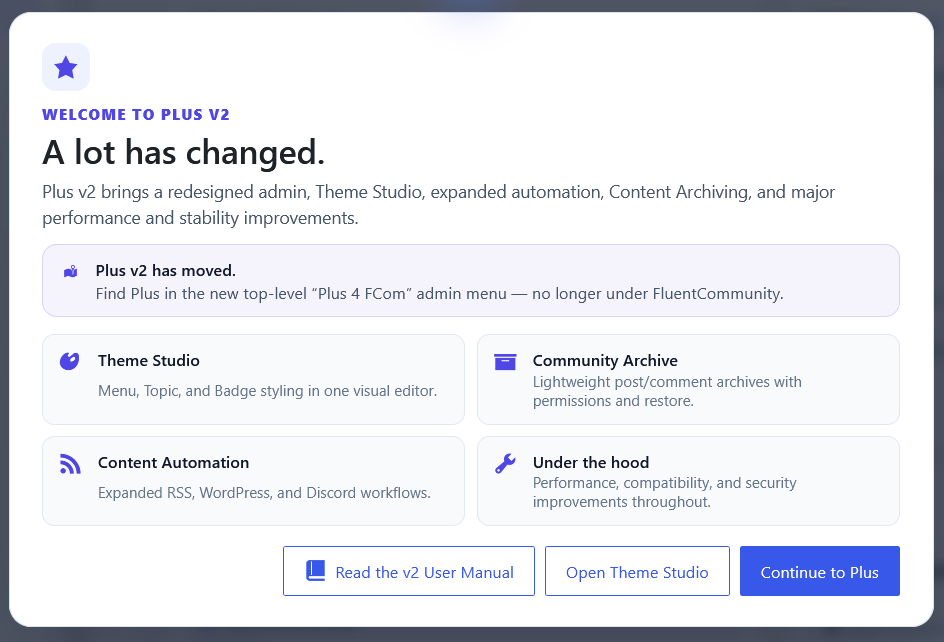
- On a first v2 install or the first upgrade into v2, Plus can route the administrator to the new Plus 4 FCom → Control Center and display the v2 welcome screen.
- Continue setup from the Control Center and enable only the add-ons and integrations the site needs.
The v2 Welcome Experience NEW IN V2
The v2 welcome screen is a one-time orientation layer for the new interface. It introduces the Control Center, points users to Theme Studio and the v2 manual, and explains the new top-level Plus location. Routine updates within v2 do not keep reopening the welcome screen.
Control Center NEW IN V2
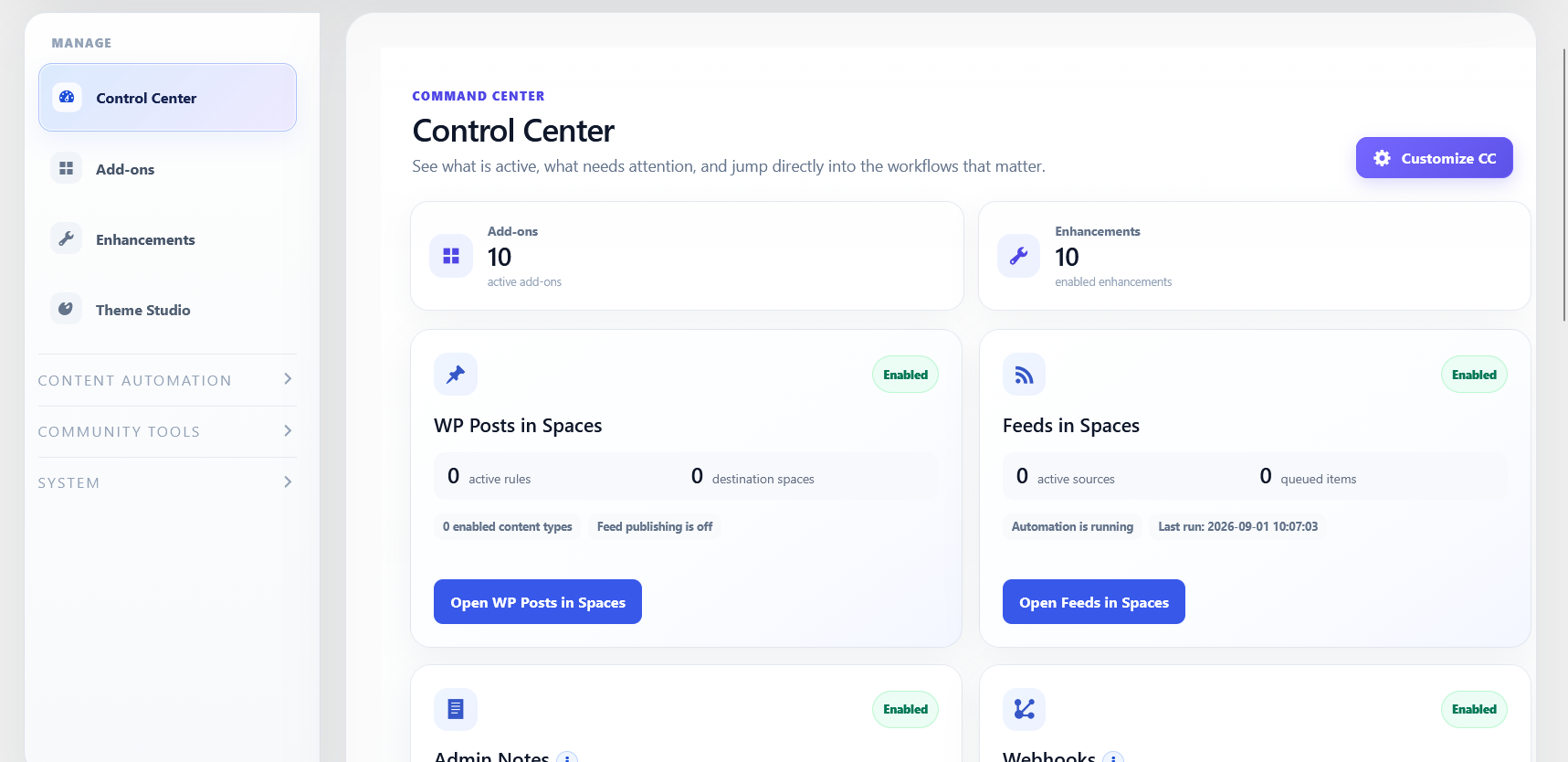
The new home screen for Plus v2. It surfaces status, enabled capabilities, important metrics, and direct access to feature groups without turning the dashboard into a wall of settings.
Dashboard & Metrics
The Control Center uses grouped cards to keep the v2 interface focused. The two primary groups are Add-Ons and Enhancements, with live state and useful metrics shown where applicable.
Enhancements
Quick access to free/core behavior controls and their enabled state.
Add-Ons
Shows licensed v2 modules and which ones are currently active.
Status & Metrics
Useful operational counts and feature state without duplicating full System Tools.
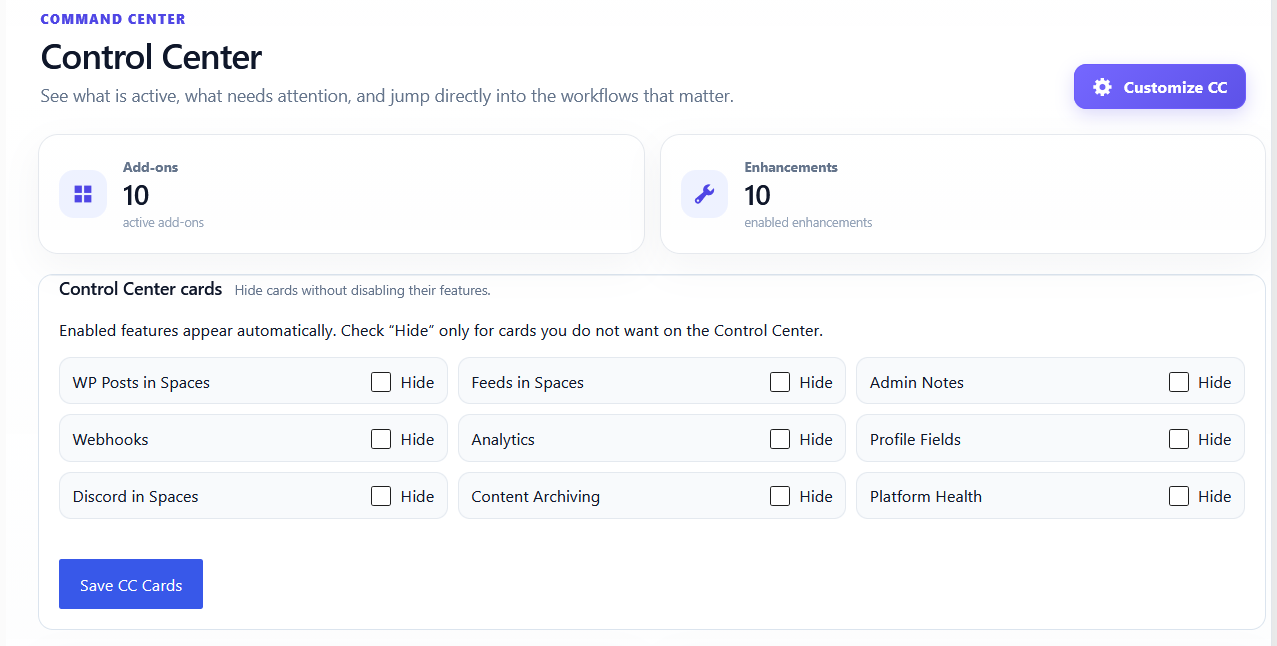
Customize Control Center
Use Customize CC to control which supported cards appear on your Control Center. This keeps the home screen relevant to the way each site actually uses Plus.
Enhancements
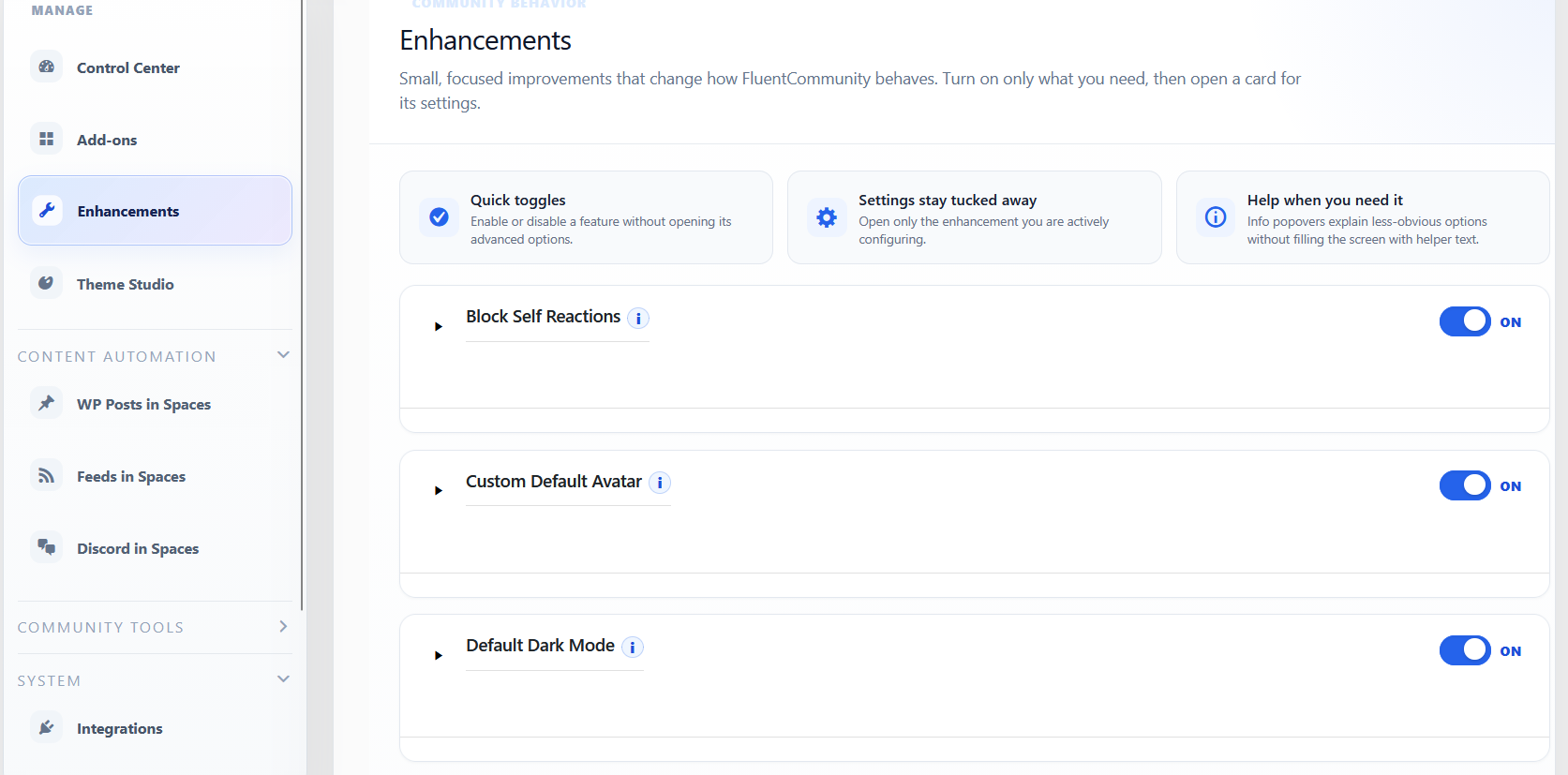
Lightweight improvements to FluentCommunity behavior that can be turned on independently.
Core Feature Catalog
| Enhancement | What it does |
|---|---|
| Block Self Reactions | Prevents members from reacting to their own posts or comments while still allowing normal bookmarking behavior. |
| Custom Default Avatar | Supports site-wide and role-aware default avatars with fallback behavior. |
| Default Dark Mode | Uses dark mode as the default for users who have not already saved a FluentCommunity theme preference. |
| Custom Copyright | Replaces the FluentCommunity portal footer copyright text and optional link. |
| Timestamp Format | Replaces relative timestamps with exact formatted date/time output. |
| Custom Editor Labels | Changes post-editor title and content placeholder labels. |
| Online Now | Adds online/recently-online member visibility and configurable refresh windows. |
| Reserved Usernames | Blocks configured usernames from registration using case-insensitive exact matching. |
Messaging Controls
Messaging Controls extend Fluent Messaging with staff-aware restrictions and group controls.
DM Restrictions
Prevent regular members from initiating direct messages to selected staff roles while preserving staff-initiated conversations and replies.
Group Chat Controls
Allow member-created group chats and optionally auto-add designated staff for moderation oversight.
Role Awareness
Community admins, moderators, and space-level staff can be handled differently depending on configuration.
Add-Ons
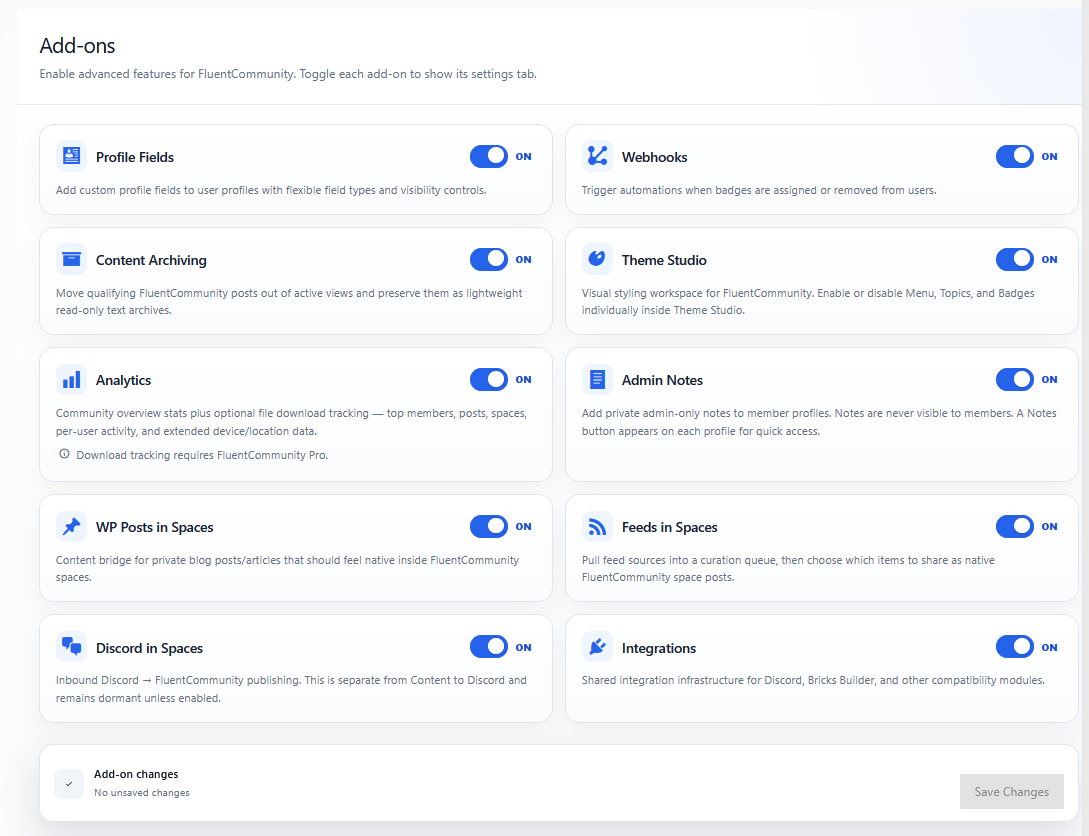
Premium modules extend Plus beyond core enhancements. The v2 Add-Ons workspace groups them by purpose and allows each one to be enabled independently.
Theme Studio NEW IN V2
Theme Studio is a new visual-design workspace and Add-On introduced in Plus v2. Enable it from the Add-Ons screen when you want to use it, or disable it to stop its admin workspace and frontend styling runtime. Saved Theme Studio settings are retained when the add-on is disabled.
| Theme Studio Area | What it controls |
|---|---|
| Module Manager | Compactly enables or disables individual Theme Studio modules without filling the editor with a large stack of module cards. |
| Preview Stage | Displays the FluentCommunity portal using a controlled virtual viewport so the preview reflects the selected device size. |
| Device Switcher | Switches between Desktop, Tablet, and Mobile preview dimensions without changing the actual browser window. |
| Element Selection | Choose an enabled styling module and reveal only the controls that apply to that part of the community. |
| Menu Styling | Controls FluentCommunity navigation/menu presentation and collapse behavior. |
| Topic Styling | Controls topic filters, topic colors, active/hover states, layout, and visibility behavior. |
| Badge Styling | Controls badge background, text, border, radius, typography, and spacing on a per-badge basis. |
| Live Changes | Applies supported setting changes to the preview immediately so you do not have to reload Theme Studio for every adjustment. |
Module Manager
The compact Modules manager shows how many Theme Studio modules are enabled and expands only when you need to change them. This keeps Theme Studio usable as more design modules are added in future releases.
- Menu: enables or disables Menu Styling.
- Topics: enables or disables Topic Styling.
- Badges: enables or disables Badge Styling.
- Saved settings are preserved: disabling a module stops its styling runtime without deleting the module's existing configuration.
Preview & Device Viewports
Theme Studio uses a virtual viewport for the FluentCommunity preview. This is important because FluentCommunity changes its own layout according to viewport width. If the preview iframe were simply squeezed into the editor column, FluentCommunity would interpret that narrow width as a tablet or mobile device even while you were trying to design the desktop layout.
| Preset | Virtual Viewport | Purpose |
|---|---|---|
| Desktop | 1440 × 900 | Shows FluentCommunity using a true desktop-width layout. |
| Tablet | 768 × 1024 | Tests FluentCommunity at a common tablet viewport. |
| Mobile | 390 × 844 | Tests the mobile community layout without resizing the browser. |
The stage visually scales the selected viewport to fit the available editor area. The viewport itself remains at the selected dimensions, so responsive behavior comes from FluentCommunity rather than from Theme Studio artificially forcing a layout.
Menu Styling
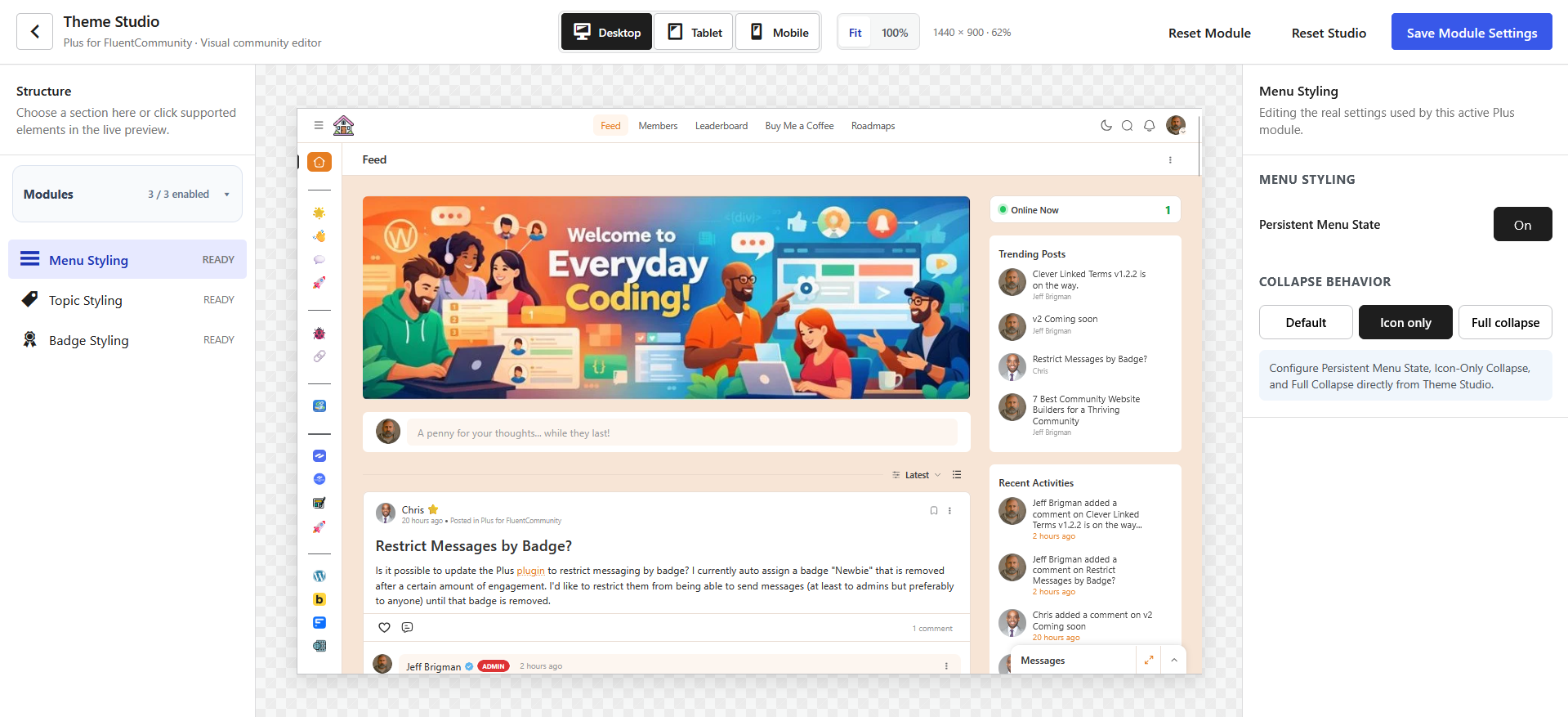
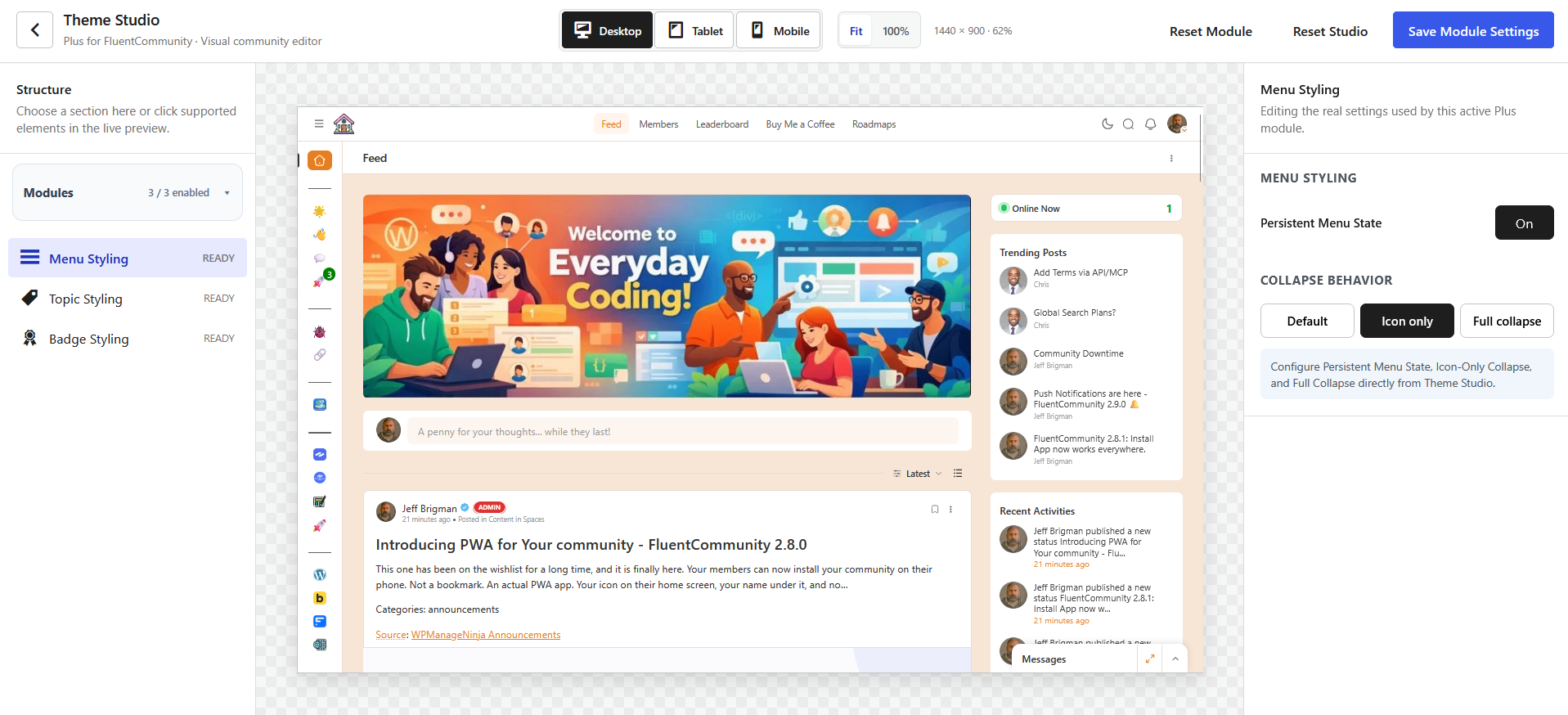
Menu Styling controls the FluentCommunity sidebar/navigation behavior. In v2 these settings are part of Theme Studio rather than being treated as a disconnected design screen.
| Setting | Description |
|---|---|
| Persistent Menu State | Remembers whether an individual user last left the community menu expanded or collapsed. |
| Icon-Only Collapse | Collapses the menu to a narrow icon rail while keeping navigation icons available. |
| Full Collapse | Hides the menu completely and allows the main community area to use the released width. |
Topic Styling
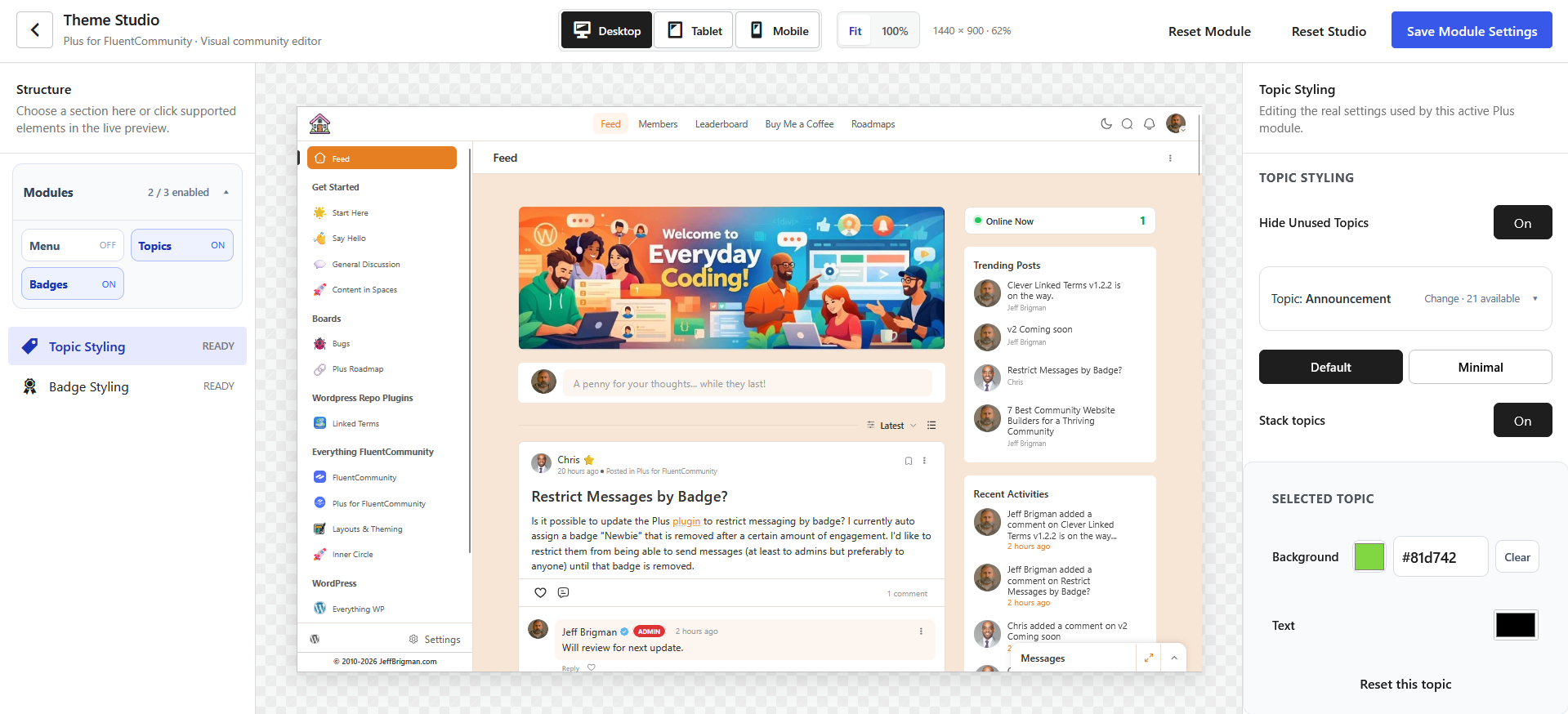
Topic Styling controls the topic filters displayed in FluentCommunity spaces. Select the Topic area in Theme Studio, then choose the topic you want to style from the topic selector. The controls apply to the selected topic and its interaction states.
| Setting | Description |
|---|---|
| Topic Selection | Choose which FluentCommunity topic you are currently editing. The selector may contain many topics, so selecting a topic changes the editing target rather than navigating away from Theme Studio. |
| Hide Unused Topics | Hides topic filters that have no matching posts in the current space. |
| Stack Layout | Changes the topic filter presentation from the normal horizontal arrangement to a vertical/stacked layout where supported. |
| Topic Filter Style | Changes the general visual presentation of topic controls. |
| Default Color | Sets the normal color for the selected topic. |
| Hover Color | Controls the topic appearance while a pointer is hovering over it. |
| Active Color | Controls the appearance of the topic when it is the active filter. |
Badge Styling
Badge Styling lets you override FluentCommunity badge presentation from Theme Studio. Select the Badge area, choose a badge from the badge selector, and then configure that badge's visual properties.
| Setting | Description |
|---|---|
| Badge Selection | Choose the FluentCommunity badge you want to style. Settings below the selector apply to that badge. |
| Background Color | Sets the badge background/fill color. |
| Text Color | Sets the badge label color. |
| Border Color | Sets the badge outline color when a border is used. |
| Border Radius | Controls corner rounding. Lower values create squarer badges; higher values create pill-like badges. |
| Font Weight | Controls how light or bold the badge text appears. |
| Font Size | Controls the badge label size. |
| Padding | Controls internal spacing around the badge text. |
Live Changes & Saving
Supported Theme Studio changes are designed to update the preview as you edit. This makes it possible to adjust colors, spacing, and presentation while looking at the affected FluentCommunity element instead of repeatedly saving and reopening the designer.
- Live preview: supported controls update the preview immediately.
- Selection-aware controls: choosing a menu, topic, badge, or other supported element determines which settings are shown.
- Saved output: save the Theme Studio configuration to make the styling persistent on the live community.
- Responsive validation: switch Desktop, Tablet, and Mobile after styling to verify the same design across FluentCommunity breakpoints.
Admin Notes
Private staff notes remain available in v2, including member-specific notes, pins, urgent status, tags, image attachments, watch notifications, viewed-by tracking, audit history, filtering, CSV export, and bulk management.
Profile Fields
Add custom profile data fields with configurable layouts, field types, and visibility rules. Supported use cases include text, long text, email, URL, date, select, checkbox, and radio inputs.
Webhooks
Send event payloads to automation services such as Flowmattic, Zapier, Make, or custom endpoints. Badge assignment/removal workflows remain supported.
Integrations
Integration cards use a consistent layout for supported third-party tools and bridges. Integrations are intended to be optional: enable only the connections your site actually uses.
| Integration | v2 behavior |
|---|---|
| FluentHub | Plus can register Plus 4 FCom inside FluentHub's unified app interface. The FluentHub visibility setting is off by default; enable Show Plus 4 FCom in FluentHub if you want Plus to appear there. |
| Discord | Enabling the main Discord integration provides the shared connection/inbound foundation used by Discord in Spaces. A separate duplicate Discord in Spaces integration card is not required. |
| Content to Discord | Outbound publishing remains a separate opt-in integration. Enabling Discord does not automatically start sending WordPress, feed, or community content to Discord. |
| Bricks Builder | Provides compatibility handling for CSS/layer conflicts that can affect the FluentCommunity portal. |
Content in Spaces
v2 groups inbound content workflows around where the content ends up: inside FluentCommunity spaces.
Feeds in Spaces NEW IN V2
Feeds in Spaces is a new v2 content-ingestion and publishing workspace. It imports external content into FluentCommunity using RSS/Atom sources or a public FluentCommunity Space with optional topic filtering.
| Area / Source | Purpose |
|---|---|
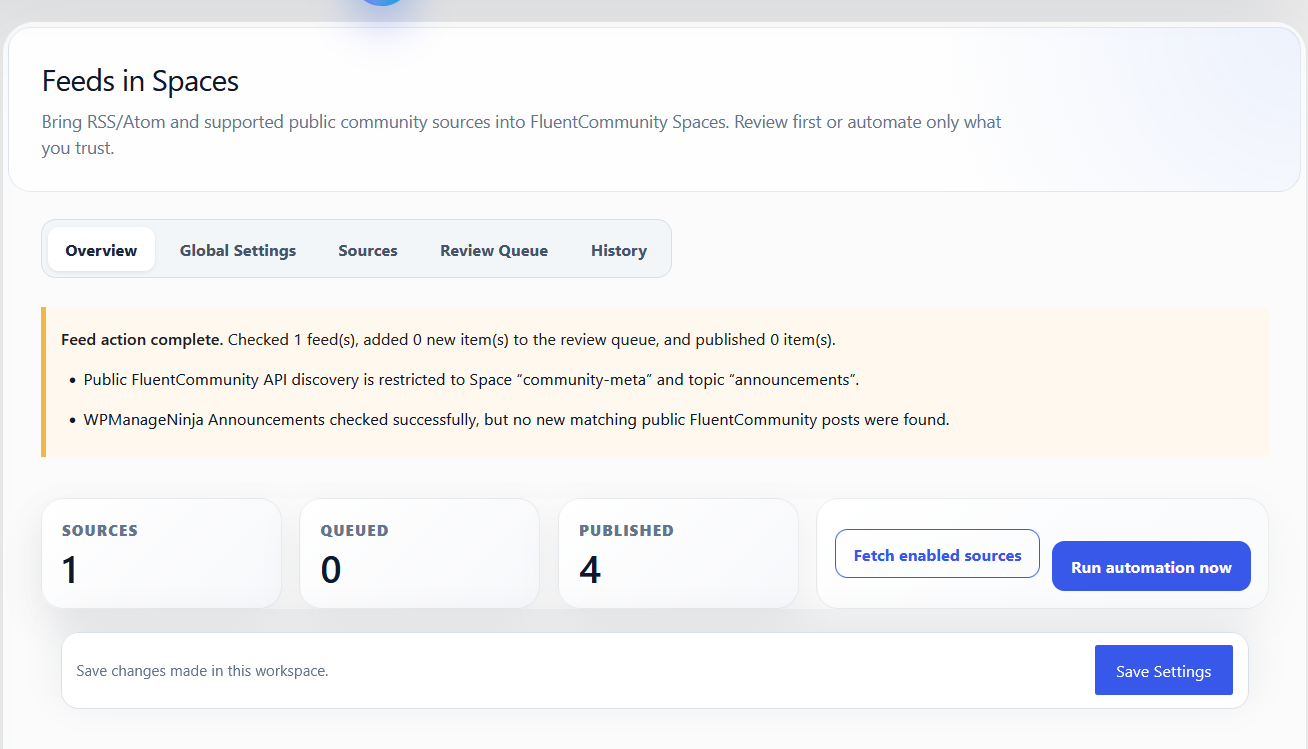
| Overview | Shows the overall state of configured feeds, queued items, and publishing activity. |
| Global | Controls defaults shared across feed configurations. |
| RSS / Atom | Imports standard RSS or Atom feed items. |
| Sitemap / XML | Follows a public FluentCommunity Space and, optionally, one topic. Plus requests the public filtered feed endpoint first and retains sitemap/page discovery as a compatibility fallback. |
| Per-feed Settings | Controls destination, posting identity, excerpts, attribution, scheduling, queue behavior, limits, and source-specific settings. |
| Category / Routing Rules | Route eligible feed content to one or more FluentCommunity destinations without forcing every source into one global default. |
- New feeds start safely: newly added feeds begin disabled and Manual-only until you configure and enable them.
- Delete feeds: saved feed configurations can be deleted. Deleting a feed removes its queued items without deleting posts that were already published.
- Duplicate protection: feed items use a stable fingerprint/idempotency check and a short publish lock to prevent a queued item and an automated/manual publish from creating the same FluentCommunity post twice.
- Queue vs. automation: a feed configured to auto-post can honor that setting during a per-feed fetch, while Manual/queue-only feeds remain in the Review Queue.
Public FluentCommunity Spaces
Choose Sitemap / XML when the source is a publicly readable FluentCommunity Space. Although the setting retains its general Sitemap / XML label, Plus first requests FluentCommunity’s public feed endpoint with the saved Space and topic filters. This produces the same filtered collection visitors see in the source community. If that endpoint is unavailable or returns an unsupported response, Plus falls back to sitemap URL discovery and public-page metadata.
| Setting | How to use it |
|---|---|
| Site / Community URL | Enter the public community’s base URL without a portal path or query string, such as https://community.example.com. |
| Space slug | Enter the slug shown after /portal/space/ in the public Space URL. |
| Topic slug | Optional. Enter the value shown after ?topic= to accept only that topic. Leave it empty to follow all public posts in the Space. |
| Sitemap index URL | Optional compatibility fallback. Leave it empty to use /portal/site-maps/index.xml, or enter the community’s known sitemap index URL. |
| Destination spaces | Select one or more Spaces on your own community. Leaving this empty uses the configured global destinations. |
| Post as | Select the local community account that will publish imported items, or use the global default. |
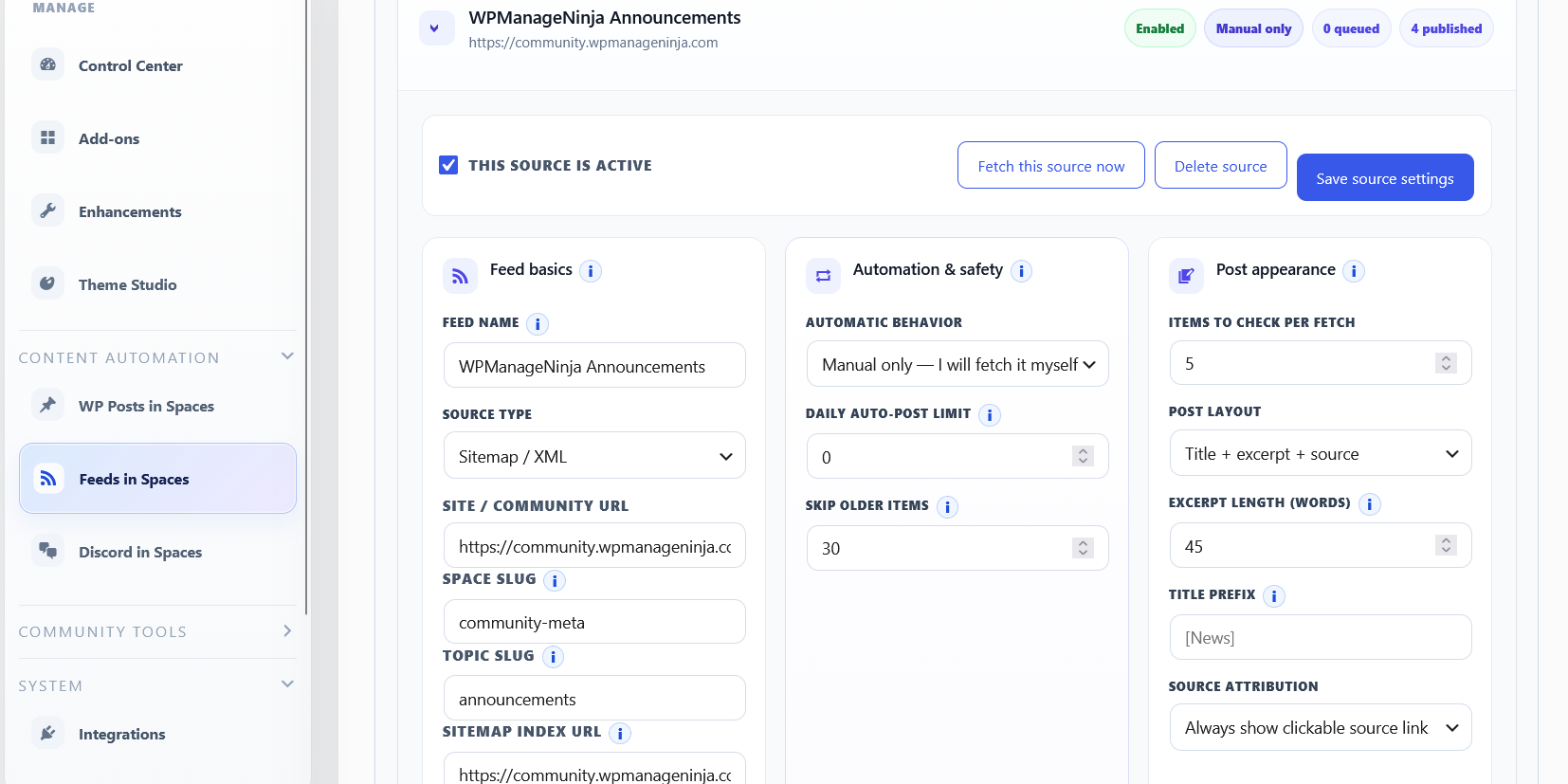
https://community.wpmanageninja.com/portal/space/community-meta/home?topic=announcements, use these values:| Setting | Value |
|---|---|
| Feed name | WPManageNinja Announcements |
| Source type | Sitemap / XML |
| Site / Community URL | https://community.wpmanageninja.com |
| Space slug | community-meta |
| Topic slug | announcements |
| Sitemap index URL | https://community.wpmanageninja.com/portal/site-maps/index.xml (optional fallback) |
Test First, Then Automate
- Select the intended destination Space and posting identity.
- Enable This source is active.
- Set Automatic behavior to Manual only — I will fetch it myself.
- For the first test, set Items to check per fetch to
5, choose the desired post layout and excerpt length, and enable a clickable source link when attribution is wanted. - Save the source, then choose Fetch this source now.
- Open the Review Queue. Confirm the titles, excerpts, original links, posting identity, and destination before publishing one test item.
- Fetch again and verify the published item is not added as a duplicate.
| Automatic behavior | Use |
|---|---|
| Manual only — I will fetch it myself | Best for initial validation. Items are fetched only when you request it and remain available for review. |
| Fetch automatically, but let me approve posts | Recommended next step after a successful manual test. Plus performs discovery while publication remains moderated. |
| Auto-post only items matching a routing rule | Publishes automatically only when a configured category/routing rule matches. |
| Auto-post every new item from this feed | Fully automatic. Enable only after the source, formatting, author, destination, and duplicate behavior have been confirmed. |
WP Posts in Spaces NEW IN V2
WP Posts in Spaces is a new v2 rule-based publishing system for sending eligible WordPress content into FluentCommunity. Each Publishing Rule owns its source filters, destination Space, posting identity, automation behavior, and message format, so the same source can be presented differently in different Spaces.
Publishing Rules
Create separate rules for separate source-to-Space workflows. Supported WordPress sources include Posts, Pages, public custom post types, Slayers News, and Slayers Guides. When Slayers Inc. Builds is active, native public Slayers Builds can also be selected.
| Rule area | Purpose |
|---|---|
| Rule name and Enabled | Identifies the workflow and controls whether automatic publishing can run. |
| Source / Post type | Selects ordinary WordPress content or an available native integration. |
| Categories and filters | Limits eligible WordPress records where the selected source supports them. |
| Destination Space | Sets the FluentCommunity Space for this rule. The same source can be published independently to another Space by another rule. |
| Posting identity | Chooses the supported community author for posts created by the rule. |
| Automation and updates | Controls automatic publication and whether materially changed mapped content is updated. |
Post Content (Per Rule)
The Post content panel customizes the FluentCommunity message for that individual rule. It applies to every supported WordPress publishing source—not only Slayers content—and can therefore vary by source and destination Space.
| Control | Result |
|---|---|
| Text before the post | Adds rule-specific introductory text before the linked content. |
| Include the linked post title | Adds the source title as a clickable link. |
| Include the featured image | Embeds the source featured image for ordinary WordPress content, News, Guides, Pages, and public CPTs when one is available. |
| Include the post excerpt | Adds the useful excerpt generated or selected by the existing rule behavior. |
| Include a linked call to action | Adds a link using the per-rule call-to-action label. |
| Call-to-action label | Sets link text such as “Read more” or “View guide.” |
| Text after the post | Adds rule-specific closing text after the linked content. |
slayers_builds source; other WordPress sources retain their configured image behavior.Automatic Publishing and Updates
With the add-on and rule enabled, Plus listens for eligible source publication events and applies that rule automatically. A new matching WordPress record can create one community post; a later material update can update the mapped post when update handling is enabled.
- Slayers Builds v1.1.9+: Plus receives the stable
sib_build_publishedevent after individual community/verified publication and once per build during bulk publication. - Visibility: native Slayers Builds automation accepts newly published public community or verified builds and ignores private, unlisted, draft, and pending-review records under the integration rules.
- Duplicate protection: clicking Publish again for an already-published build does not represent a new publication transition; Plus also checks the existing destination-specific mapping before creating.
- Required configuration: the WP Posts in Spaces add-on, the individual rule, and automatic publishing must be enabled, and the destination Space must still exist.
Preview Rule
Use Preview rule on a saved rule to inspect its final formatted FluentCommunity message without publishing it. The preview uses that rule’s source, destination, and Post content settings and reflects the Slayers Builds no-embedded-image exception.
- Save the rule.
- Select Preview rule from its actions.
- Review the resolved source record, destination, expected Create/Update/Skip action, and formatted message.
- Return to Publishing Rules to make changes and preview again.
admin-post.php URL. Plus now returns a readable inline error and a stable link back to the rule workspace when a nonce is expired, a rule was removed, or no eligible source record is available.Historical Scan and Backfill
Historical backfill finds older eligible records for one saved rule and compares each record with its destination-specific FluentCommunity mapping before anything is pushed.
| Preview action | Meaning |
|---|---|
| Create | No valid mapped FluentCommunity post exists for this source in this destination Space. |
| Update | A mapped post exists in the correct Space and the source content has materially changed. |
| Skip | A valid mapped post exists in the correct Space and its mapped content is unchanged. |
- Save the rule and run its historical scan.
- Review the proposed actions and select eligible records.
- Push the selection and review Created, Updated, Skipped, and Failed totals.
- Run the scan again when needed; unchanged mapped records resolve to Skip instead of becoming new creates.
Discord in Spaces NEW IN V2
Discord in Spaces imports Discord content into FluentCommunity. It is the inbound side of the Discord integration: Discord is the source, and FluentCommunity spaces/posts are the destination. v2 separates this from outbound Discord publishing so it is always clear which direction content is moving.
Connection
The Connection area identifies the Discord server Plus is allowed to read and provides the credentials needed for inbound imports.
| Setting | Purpose |
|---|---|
| Bot Token | The Discord bot credential used by Plus to access the Discord API. Treat it like a password and never expose it publicly. |
| Guild ID | The Discord server ID. This tells Plus which server to inspect for categories, channels, messages, and mirror operations. |
| Connection / Validation | Use the available connection check before building rules. A valid token with access to the wrong server will still produce confusing channel/rule results. |
Mirror Structure
Mirror Structure helps recreate a Discord hierarchy inside FluentCommunity. The current v2 model associates a mirror with a specific Discord server and uses the source structure to determine the FluentCommunity destination.
| Discord | FluentCommunity | Notes |
|---|---|---|
| Server / Guild | Mirror source | The mirror is tied to the selected Guild ID so multi-server support can remain isolated. |
| Category | Space / grouping destination | Categories are used to organize imported channel content. The exact destination should follow the mirror mapping rather than a global default. |
| Channel | Imported post stream / mapped destination | Rules can target individual channels and import their messages into the mapped FluentCommunity area. |
Import Rules
Rules let you import selected Discord channels without mirroring an entire server. Multiple rules can be created so different Discord channels can feed different FluentCommunity spaces.
| Rule Control | What it does |
|---|---|
| Channel ID | Selects the Discord channel that supplies messages. Be careful not to paste a category ID when the rule expects a channel ID. |
| Destination Space | Chooses where imported content is published when the rule is not using a more specific mirror destination. |
| Preview / Test Import | Lets you inspect what Plus will import before committing a larger batch. |
| Manual Import / Re-import | Runs the rule on demand. Re-import is useful after a mapping or parser change when you intentionally want to process source content again. |
| Posting Identity | Supports a neutral Discord-style posting identity so imported content does not need to impersonate a real community member. |
How Imported Discord Content Is Built
Discord messages are converted into FluentCommunity posts while preserving useful context and avoiding formatting that does not translate cleanly between platforms.
| Imported Element | v2 behavior |
|---|---|
| Post Title | Derived from the Discord message/context and made unique enough to avoid FluentCommunity duplicate-title conflicts while remaining readable. |
| Author | Discord author information can be shown in the imported content even when the FluentCommunity posting account is a neutral Discord user. |
| Timestamp | The Discord message time is preserved as source context where supported. |
| Message Text & Links | Normal text, URLs, and supported emoji content are carried into the post. |
| Attachments | Supported Discord attachments are included with the imported message instead of being discarded. |
| Stickers | Sticker imports use a usable image fallback where available. Raw Lottie/JSON sticker data is not inserted as a community image. |
| Original Message Link | A View original Discord message link can be included so staff or members can jump back to the source message. |
Automatic Sync & Activity
After the connection and rules are working manually, automatic synchronization can keep Discord and FluentCommunity reasonably current without requiring an admin to press Import repeatedly.
- Near-real-time scheduling: run lightweight scheduled checks at an interval appropriate for the site instead of performing expensive work on every page request.
- Rule isolation: activity identifies a problem with an individual channel/rule without treating it as a successful import.
- Activity log: record imports, skips, errors, and useful source/destination context.
- Clear Activity: remove old Discord activity history when it is no longer useful without deleting the underlying Discord rules.
Content to Discord NEW IN V2
The new outbound Discord workspace sends supported content from WordPress, Feeds in Spaces, or FluentCommunity to Discord.
Integration Gate
The main Discord integration supplies the shared Discord connection and inbound foundation. When Discord is enabled, Discord in Spaces is available as part of that inbound system rather than requiring a second duplicate integration toggle.
Outbound Workflows
| Workflow | Source | Destination / Use |
|---|---|---|
| WP → Discord | WordPress posts | Send selected publishing activity to Discord using configured routing. |
| Feeds → Discord | Feeds in Spaces sources | Forward eligible feed items to Discord without first requiring them to become FluentCommunity posts. |
| Spaces → Discord | FluentCommunity | Send supported community activity from selected spaces to Discord. |
Configure each outbound workflow independently; enabling one direction does not automatically activate unrelated Discord publishing.
Archiving System NEW IN V2
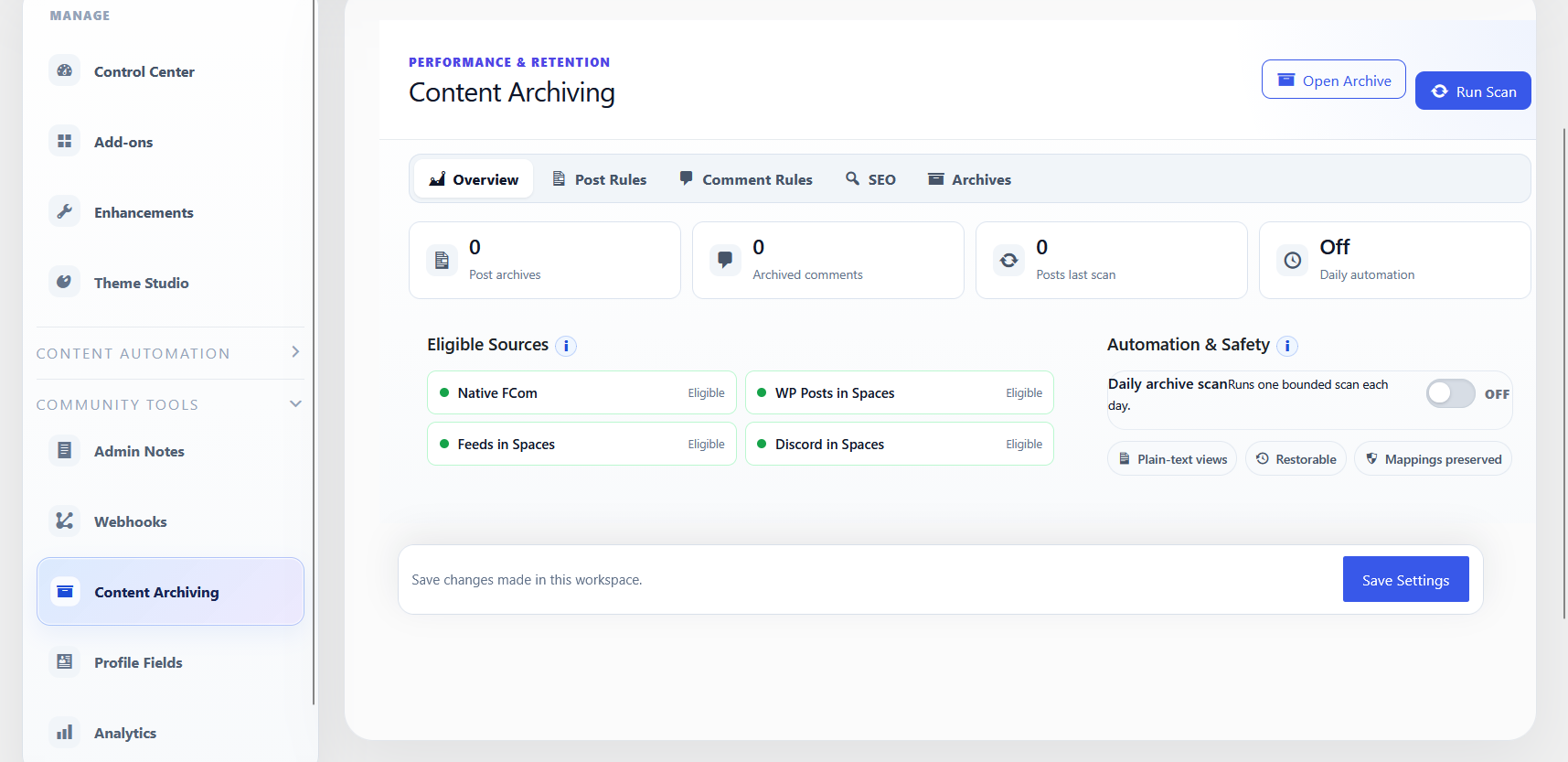
Move older or high-volume community content out of the active dataset while keeping it searchable, exportable, and restorable.
Archive Rules & Scans
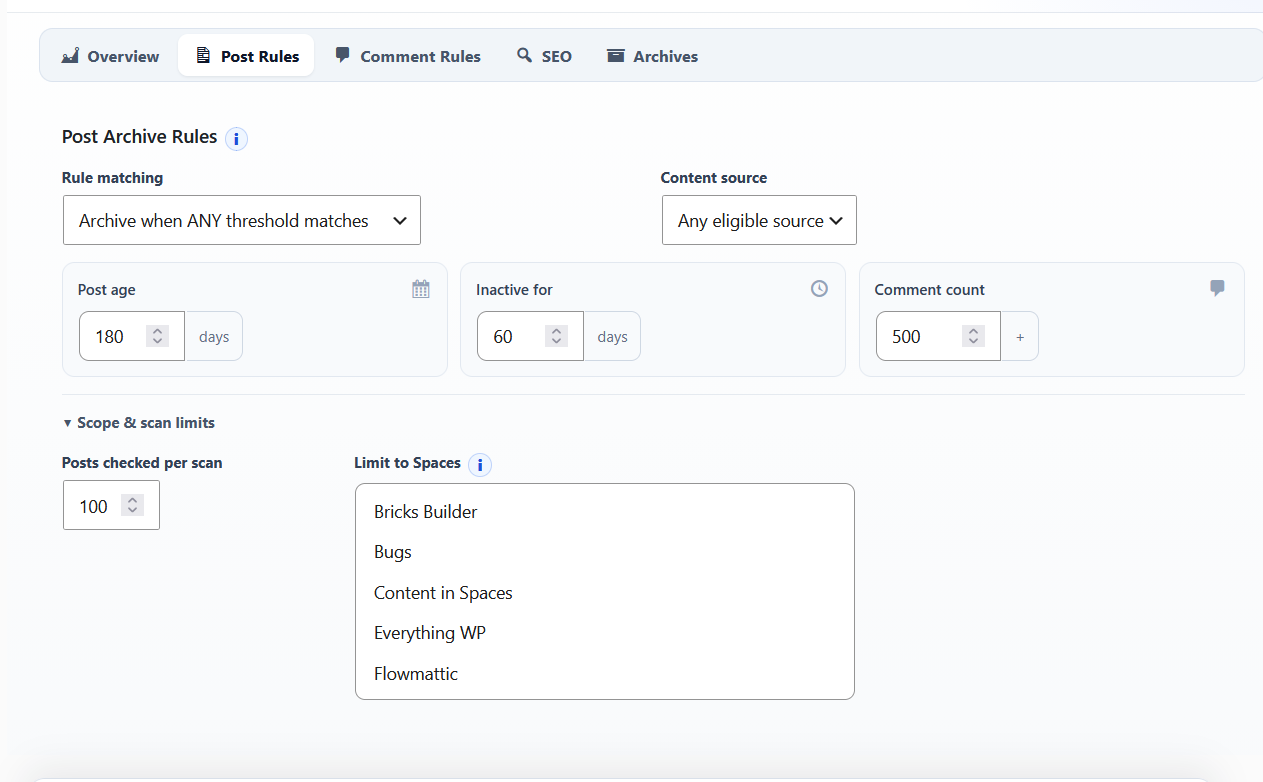
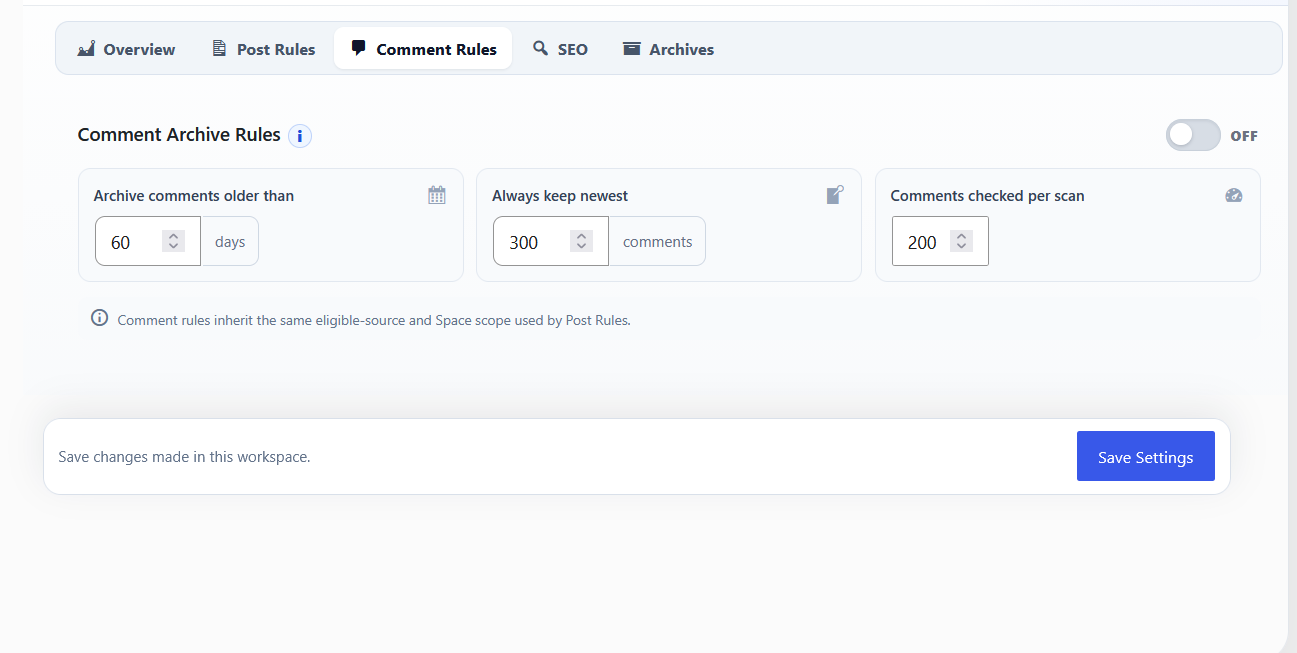
Archive rules determine what is eligible to leave the live FluentCommunity dataset. Rules can consider content age, volume, and supported exclusions. Use Run Scan to evaluate current content against those rules.
| Rule / Control | Description |
|---|---|
| Archive by Age | Targets content older than the configured age threshold. |
| Archive by Volume | Targets content when active post/comment volume exceeds the configured working limit. |
| Feature Exclusions | Disabled archive features and rules do not make their associated content eligible for processing. |
| Restored Item Protection | Recently restored items are excluded from automatic archive rules for a three-day cooling-off period so they do not immediately disappear again. |
| Run Scan | Checks eligible content against the current rules before or during archive processing. |
Archive Library & Community Archive
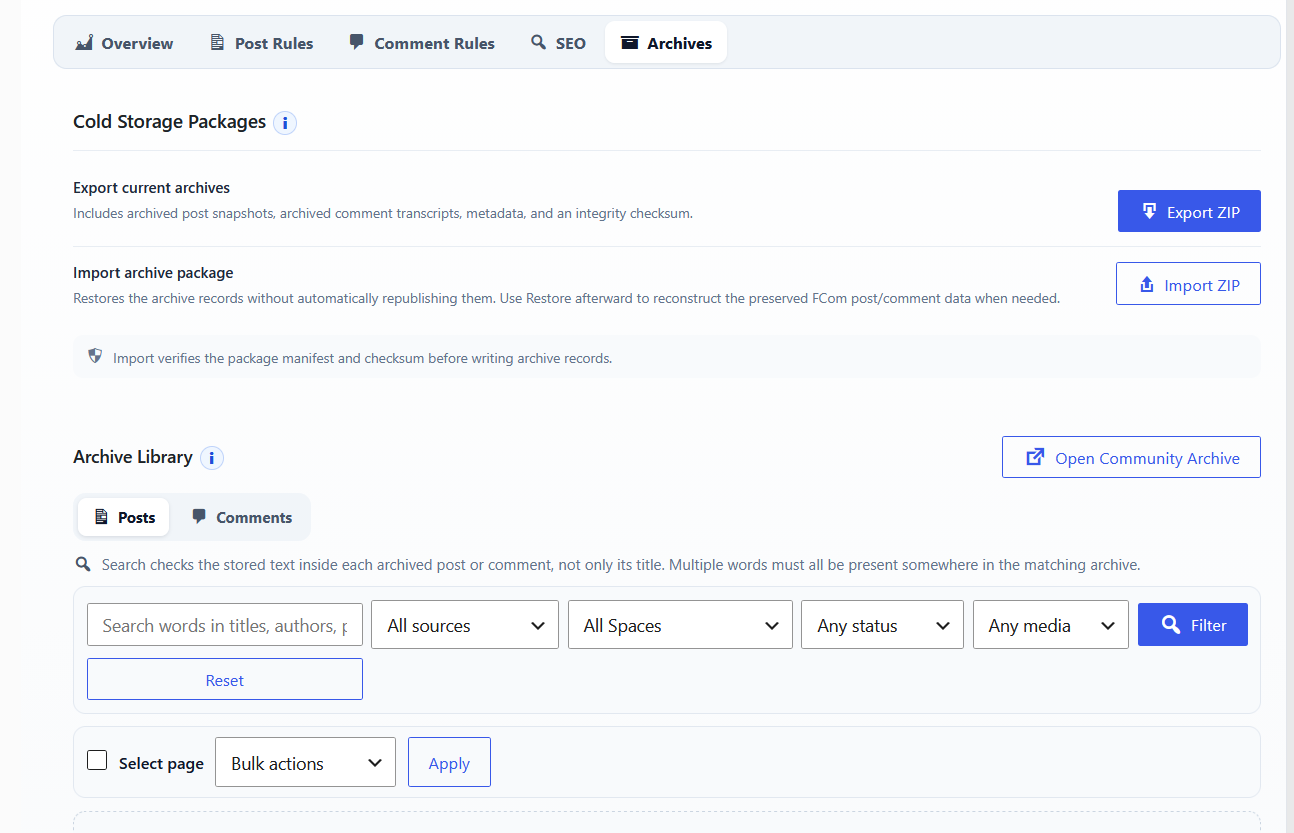
Open Archive provides the administrative view of archived content, while the frontend Community Archive provides a lightweight reading experience for content the current visitor is allowed to see. Posts and comments remain separate record types.
- Filter/search archived posts and comments independently.
- Archive detail pages include a clear Back to Community Archive action.
- Archive visibility follows FluentCommunity access: visitors see only public content, while logged-in users see additional archived content only when their community access/roles permit it.
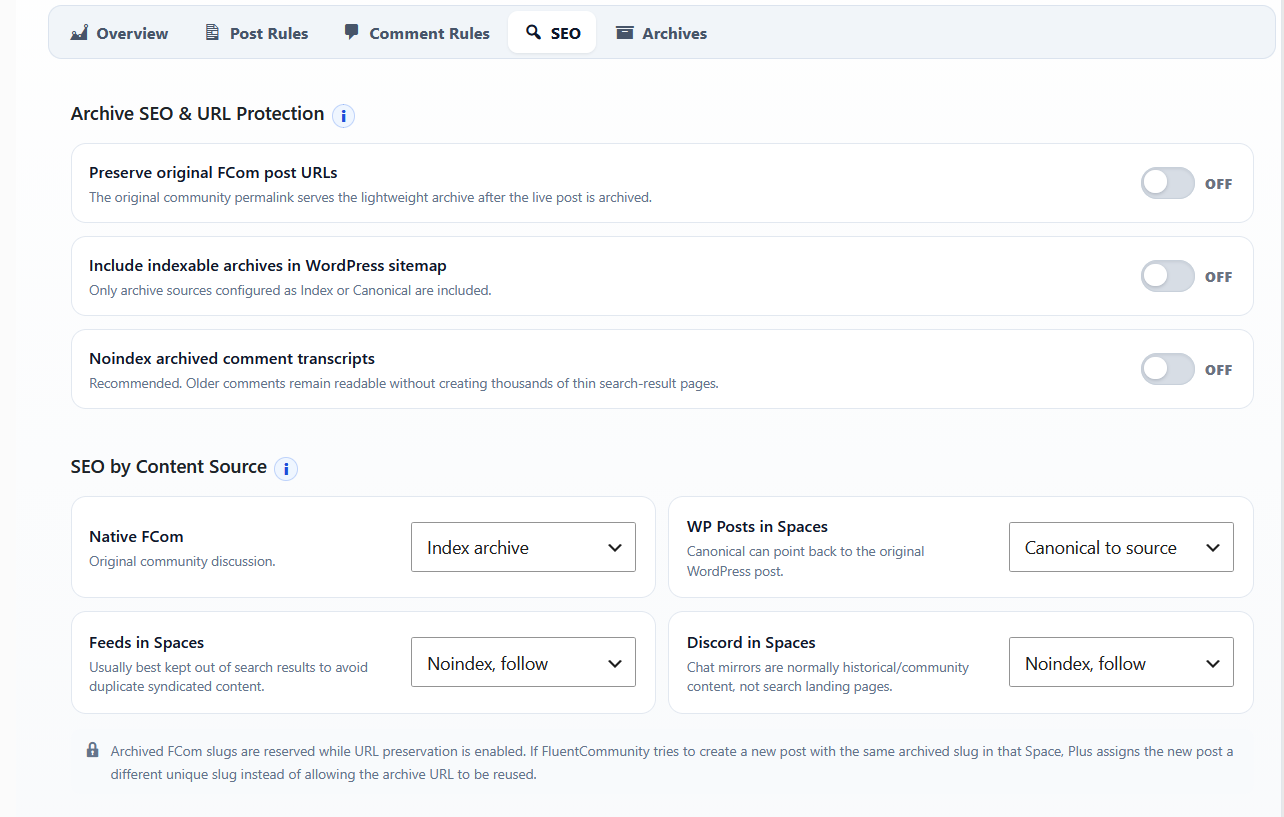
- Private/restricted Space names and archive URLs are kept out of visitor-facing filters and public sitemap output.
- Images referenced by archived posts/comments are rendered from lightweight media references and lazy-loaded instead of copying image binaries into every archive record.
- Other active community sessions receive lightweight archive invalidation so newly archived posts/comments disappear without requiring a full page reload.
Restore, Unarchive & Re-archive
Restoring returns archived content to FluentCommunity. The archive system must distinguish an intentional restore from ordinary new content so automatic rules do not immediately archive it again.
For user-facing archive access, the long-term design also allows an archive list and an unarchive/request workflow without exposing unrestricted administrative archive controls to ordinary members.
Export & Long-Term Storage
The archive format is intentionally lightweight. Normal archive viewing uses a precomputed Lite snapshot instead of loading FluentCommunity's full application state or decoding the canonical restore payload on every request.
- Display snapshots keep only useful semantic content and minimal media references.
- Images are referenced rather than duplicated, with lazy loading used on archived detail pages.
- The full canonical FluentCommunity data is retained separately for accurate restore/export operations but is not needed for ordinary archive reading.
- Archive packages can be exported as ZIP files with the metadata needed to understand and later restore the source content.
Analytics
Analytics continues to measure supported community activity, content usage, traffic sources, devices, campaigns, and downloads. In the v2 navigation, it is located under Community Tools.
Tracking Settings
Analytics is opt-in by event type. Enable only the tracking you need; data begins accumulating after the relevant toggle is enabled.
| Tracking | What is logged |
|---|---|
| Posts | New community posts. |
| Comments | New comments. |
| Reactions | Reaction additions/removals. |
| Space Joins | Members joining or leaving spaces. |
| Logins | Successful member logins. |
| Post Views | Supported post-view events. |
| Space Visits | Navigation into community spaces. |
| Download Tracking | FluentCommunity Pro document-library downloads when Pro is active. |
Extended Tracking
Extended Tracking enriches activity with additional request/device context such as IP address, country/city, device type, browser, operating system, external referrer, and UTM campaign values.
Dashboard
The dashboard supports period filtering and drill-down cards. Typical cards include All Activity, Total Members, Posts, Spaces, Downloads, Top Country, Device, Browser, OS, Referrer, and UTM Source.
- Change the reporting period (for example 7, 30, 90 days, or all time).
- Open summary cards for detailed breakdowns.
- Filter activity by type and space.
- Sort and paginate detailed activity.
Data Management & Export
| Action | Description |
|---|---|
| Retention | Set how long activity/download records should be kept; a zero/forever option may be available depending on the dataset. |
| Clear Activity | Deletes stored activity history. |
| Clear Downloads | Deletes download tracking history. |
| Delete User Data | Remove analytics records associated with a specific user. |
| Exclude User | Stop future analytics collection for a selected user until re-included. |
| Export CSV | Download the filtered activity dataset, not merely the rows visible on the current page. |
System Tools NEW IN V2
A new organized workspace for maintenance, diagnostics, cleanup, and recovery actions.
Maintenance & Diagnostics
System Tools is the administrative utility area for operations that are useful occasionally but do not belong in everyday feature configuration. Depending on the enabled v2 modules, this can include diagnostic/status information, cleanup actions, repair operations, and feature-specific history management.
History & Log Cleanup
Features such as Discord synchronization and other operational tools can accumulate history. Use the relevant clear-history action when those logs are no longer useful. Analytics has its own data-management controls under Community Tools → Analytics. Clearing a log should not disable the feature or remove its configuration unless the action explicitly says it will.
When to Use System Tools
- After a failed import/sync when you need diagnostic context.
- When an activity/history table has grown unnecessarily large.
- When a repair or scan action is specifically recommended by a Plus update or support instruction.
- Before/after major migrations when you need to verify stored state.
Licensing
Activate or deactivate your Plus license and unlock premium v2 modules.
Activating a License
- Open the Plus license area from the v2 admin interface.
- Enter the license key supplied with your purchase.
- Activate the license.
- Return to Add-Ons and enable only the premium modules you want to use.
Moving or Deactivating a License
Translations
Plus uses standard WordPress internationalization patterns and can be translated with tools such as Loco Translate.
Translation Files
Use the plugin translation template as the source for your language files, then sync translations again after updates to pick up newly added v2 strings.
Updating Translations
Troubleshooting
Fast checks for the most common v2 configuration and workflow problems.
Common Issues
| Problem | What to check |
|---|---|
| Add-on settings are missing | Confirm the license is active and the add-on itself is enabled. |
| Theme Studio changes do not appear live | Confirm the preview bridge is active and reload only the preview if necessary. Avoid using a narrow iframe width as the actual desktop viewport. |
| Desktop preview looks mobile | Use the fixed Desktop virtual viewport. The preview is visually scaled rather than responsively shrunk to the editor column width. |
| Discord inbound import fails | Check bot token, Guild ID, channel ID/rule selection, and the returned server error. Test with one source before adding more rules. |
| Discord import creates duplicate-title errors | Confirm the unique-title logic is enabled for inbound Discord posts. |
| Feed/WP content routes to the wrong space | Review global defaults plus the specific feed/rule mapping. A configured per-rule destination takes precedence. |
| A feed item posts twice | Confirm the source has been updated to the current Feeds in Spaces implementation and that the item is not being intentionally re-imported. Current builds use an item fingerprint and publish lock to prevent queue/automation races. |
| FluentHub does not show Plus | FluentHub visibility is off by default. Open the FluentHub integration in Plus and enable Show Plus 4 FCom in FluentHub. |
| Theme Studio module is missing | Confirm the Theme Studio Add-On is enabled, then expand its compact Modules manager and enable the individual module. |
| Archived content returns to archive immediately | Confirm the restored-item exclusion/cooling-off period is active. |
| Analytics shows zero activity | Verify the appropriate tracking toggles are enabled. Most event data starts accumulating only after tracking is enabled. |
| Old activity/history is cluttered | Use the clear-history/data-management action for the relevant feature or System Tools. |